Ready to Share Your Voice! 🎤💚
Creating your first post on HubPost is an exciting step toward connecting with communities, sharing your ideas, and building your visibility. This comprehensive guide will walk you through all the features available to make your posts engaging and effective.
Step-by-Step Guide to Creating Posts
Access the Post Creation Page
Navigate to the post creation page by clicking the 'Create Post' button from the navigation menu or homepage.
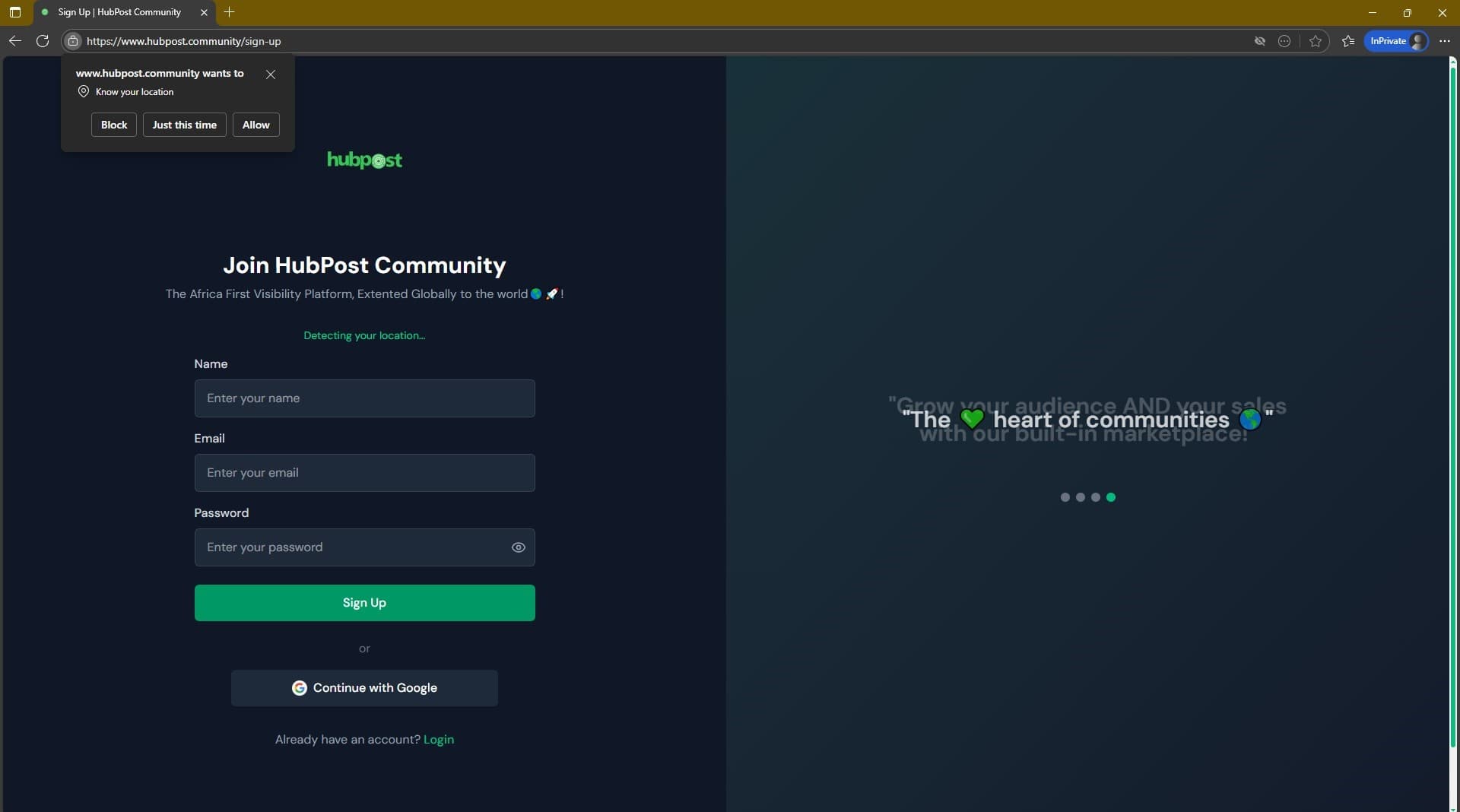
📸 Tip: Look for the pencil/edit icon in the navigation
Helpful Tips:
- Look for the pencil/edit icon in the navigation
- You can also create posts directly from communities
Write Your Content
Use the rich text editor to write your post with formatting options like bold, italic, and more.

📸 Tip: Use the toolbar for text formatting
Helpful Tips:
- Use the toolbar for text formatting
- Keep your content engaging and relevant
- Use paragraphs for better readability
Add Media and Attachments
Enhance your post with images, links, code blocks, or polls to make it more interactive.

📸 Tip: Images help increase engagement
Helpful Tips:
- Images help increase engagement
- Use polls to gather opinions
- Code blocks are great for technical content
Set Audience and Privacy
Choose who can see your post - Public, Friends Only, or Only Me.

📸 Tip: Public posts are visible to everyone
Helpful Tips:
- Public posts are visible to everyone
- Friends Only limits visibility to your connections
- Use Only Me for personal notes
Add Hashtags and Tags
Use hashtags to categorize your content and tag collaborators when needed.

📸 Tip: Hashtags help with discoverability
Helpful Tips:
- Hashtags help with discoverability
- Tag relevant collaborators
- Use trending hashtags for wider reach
Preview and Publish
Review your post and choose to publish immediately, schedule for later, or save as draft.

📸 Tip: Always preview before publishing
Helpful Tips:
- Always preview before publishing
- Use scheduling for optimal timing
- Drafts let you come back later
Editor Features Overview
Text Formatting
- • Bold and Italic text
- • Underline and strikethrough
- • Code formatting
- • Text alignment options
Media & Attachments
- • Image uploads (up to 5MB)
- • Link previews
- • Code blocks with syntax highlighting
- • Interactive polls
Social Features
- • Hashtag suggestions
- • User tagging (@mentions)
- • Call-to-action buttons
- • Collaboration features
Post Types Available
Standard Post
- • Basic text content
- • Image attachments
- • Link sharing
- • Ideal for updates
Poll Post
- • Multiple choice questions
- • Custom duration
- • Real-time results
- • Great for engagement
Code Post
- • Syntax highlighting
- • Multiple languages
- • Code explanations
- • Developer focused
Link Post
- • Rich link previews
- • Automatic metadata
- • Image thumbnails
- • Perfect for sharing
Publishing Options
Publish Now
Immediately share your post with your audience
Schedule Post
Set a future date and time for automatic publishing
Save Draft
Store your post privately and finish it later
Common Posting Issues & Solutions
❌ Image upload fails
Check file size (max 5MB) and format (JPEG, PNG, WebP)
❌ Post not publishing
Ensure you have internet connection and try refreshing
❌ Formatting issues
Use the formatting toolbar instead of pasting formatted text
❌ Link preview not working
Ensure the URL is valid and accessible
Best Practices for Great Posts
✅ Do's
- • Write clear and concise content
- • Use relevant hashtags
- • Add engaging visuals
- • Tag relevant people
- • Proofread before posting
❌ Don'ts
- • Post sensitive personal information
- • Use excessive hashtags
- • Post low-quality images
- • Forget to set audience privacy
- • Ignore community guidelines
Ready to Share Your First Post?
Now that you know how to create engaging posts, start sharing your ideas with the HubPost community today!